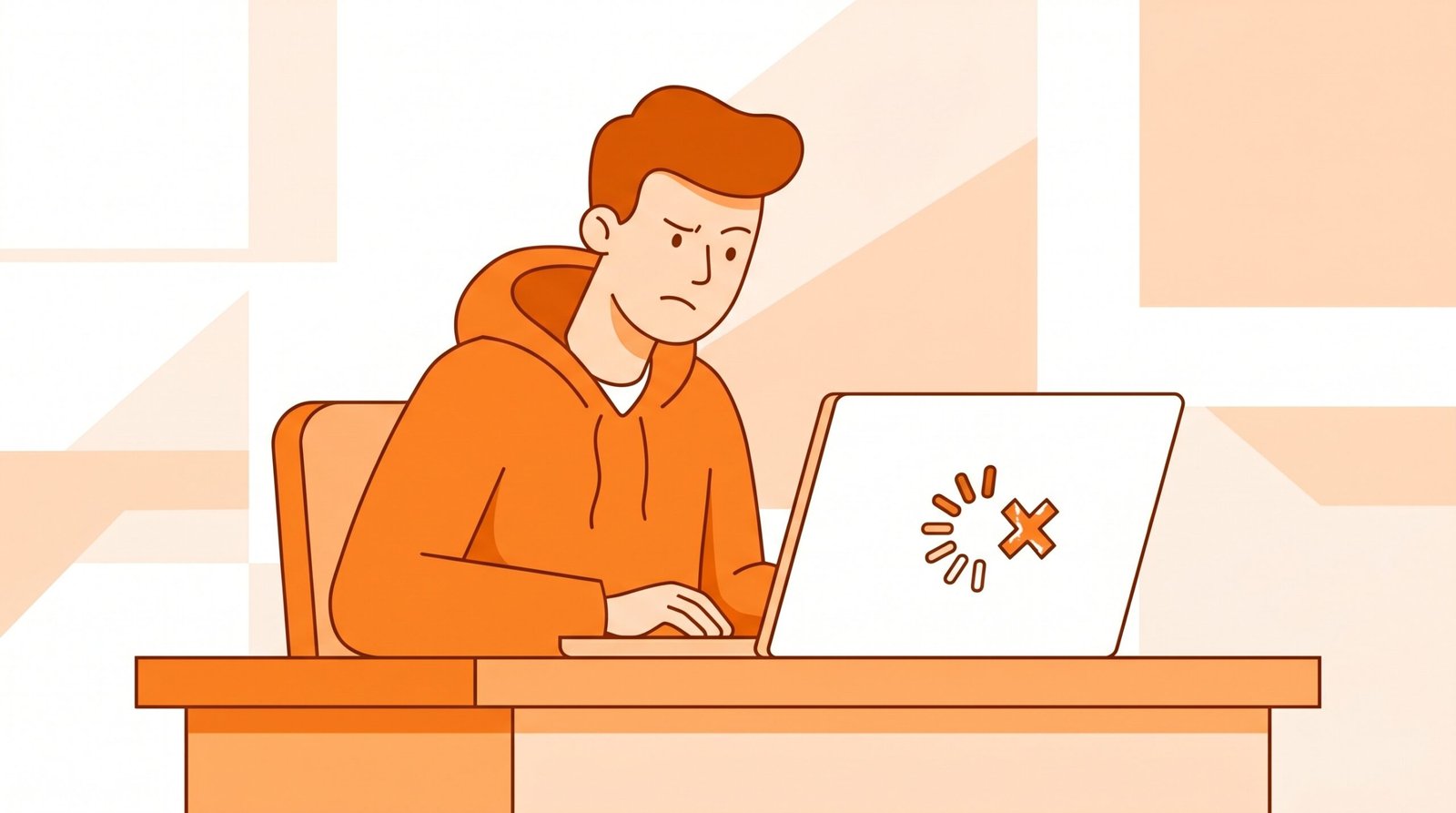
OmeTV not working is one of the most common problems users face on the platform. Whether your camera is not loading, the screen is black, or OmeTV simply refuses to connect — this guide covers all the fixes you need. By the end of this article you will have OmeTV working perfectly again on any device.
Why is OmeTV Not Working?
Before jumping into the fixes, it helps to understand why OmeTV stops working in the first place. OmeTV not working is usually caused by one of these reasons:
- Browser not having camera or microphone permission
- Outdated browser or app version
- Slow or unstable internet connection
- Browser cache and cookies causing conflicts
- A temporary ban or restriction on your account
- OmeTV servers being temporarily down
- VPN or firewall blocking the connection
The good news is that all of these problems have simple solutions. Go through the fixes below in order and OmeTV will be working again in minutes.
Fix 1 — Check Your Camera and Microphone Permissions
The most common reason OmeTV is not working is that your browser has not been given permission to access your camera and microphone. Without these permissions OmeTV cannot function at all.
To fix camera permissions on Chrome, click the small camera icon on the right side of your browser address bar. If it shows blocked, click on it and select Allow. Then refresh the page and try OmeTV again.
On Firefox, click the lock icon on the left side of the address bar. Find Camera and Microphone in the permissions list and make sure both are set to Allow. Refresh the page after making changes.
On mobile, go to your phone Settings, find the OmeTV app, tap Permissions, and make sure Camera and Microphone are both turned on.

Fix 2 — Refresh the Page or Restart the App
This sounds too simple but it works more often than you think. If OmeTV is not working suddenly, a quick page refresh or app restart fixes the problem in many cases. Press F5 on your keyboard to refresh the browser page or close the app completely and reopen it. Wait 10 seconds before reopening to make sure everything resets properly.
Fix 3 — Clear Browser Cache and Cookies
Old cached data and cookies stored in your browser can cause OmeTV to stop working properly. Clearing this data forces your browser to load OmeTV fresh without any conflicting stored information.
On Chrome press Ctrl Shift Delete at the same time. Set the time range to All Time. Check Cookies and other site data and Cached images and files. Click Clear Data and restart Chrome. Open OmeTV again and check if it is working.
On Firefox press Ctrl Shift Delete. Select Everything from the dropdown. Check both Cookies and Cache and click Clear Now. Restart Firefox and try again.
Fix 4 — Update Your Browser or App
An outdated browser or app version is a very common reason for OmeTV not working properly. OmeTV regularly updates its platform and older browser versions sometimes fail to load it correctly.
To update Chrome, click the three dots in the top right corner, go to Help, and click About Google Chrome. Chrome will automatically check for updates and install them. Restart Chrome after updating.
For the mobile app, open Google Play Store or Apple App Store, search for OmeTV, and tap Update if an update is available. Always keep your app on the latest version for the best experience.
Fix 5 — Check Your Internet Connection
OmeTV requires a stable internet connection to work properly. A slow or unstable connection causes OmeTV to freeze, show a black screen, or fail to connect with other users entirely.
Run a quick speed test at fast.com to check your connection speed. OmeTV works best with a minimum speed of 2 Mbps. If your speed is lower than this, try moving closer to your WiFi router, restarting your router, or switching from WiFi to mobile data.
If your internet speed is fine but OmeTV is still not working, the problem is likely with the app or browser itself rather than your connection.
Fix 6 — Try a Different Browser or Device
If OmeTV is not working on one browser, try opening it on a completely different browser. Some browsers handle webcam access differently and switching browsers solves the problem instantly in many cases.
If you are using Chrome, try Firefox or Microsoft Edge. If you are on a laptop, try using the mobile app instead. If you are on the app, try the website on your browser. This simple switch takes less than one minute and fixes OmeTV not working in a large number of cases.
Fix 7 — Disable VPN or Firewall
If you are using a VPN, it may be blocking OmeTV or causing connection issues. Turn off your VPN completely and then try opening OmeTV again. Many VPN services interfere with video chat platforms and disabling it often solves the problem immediately.
If you are on a school, office, or public WiFi network, the network firewall may be blocking OmeTV. In this case try switching to your mobile data connection instead. Mobile data bypasses network firewalls completely.
OmeTV Not Working — Quick Fix Summary
| Problem | Best Fix |
|---|---|
| Black screen on OmeTV | Check camera permissions |
| OmeTV not connecting | Check internet connection |
| Camera not loading | Clear cache and update browser |
| OmeTV keeps freezing | Restart browser or app |
| OmeTV blocked on network | Switch to mobile data |
| App not opening | Update or reinstall the app |
| Still not working | Try a different browser or device |
Is OmeTV Down Right Now?
Sometimes OmeTV not working has nothing to do with your device. OmeTV servers occasionally go down for maintenance or experience temporary outages. To check if OmeTV is down, visit downdetector.com and search for OmeTV. If there is a reported outage, simply wait for 30 to 60 minutes and try again. Server issues are always temporary and get resolved quickly.

Frequently Asked Questions
Why is OmeTV showing a black screen?
A black screen on OmeTV is almost always caused by camera permission being blocked. Go to your browser settings, allow camera access for OmeTV, and refresh the page.
Why does OmeTV keep disconnecting?
OmeTV keeps disconnecting when your internet connection is unstable. Try restarting your router or switching to mobile data for a more stable connection.
Why is OmeTV not finding anyone to chat with?
If OmeTV is not connecting you with anyone it could be a server issue or a soft ban on your account. Wait a few minutes and try again. If the problem continues, try clearing your cache and changing your IP address.
Does OmeTV work on all browsers?
OmeTV works best on Chrome and Firefox. Some issues can occur on older browsers or Safari. Always use an updated version of Chrome or Firefox for the best experience.
Why is my OmeTV camera not working on mobile?
On mobile, go to your phone settings, find the OmeTV app, tap Permissions, and make sure Camera and Microphone permissions are both enabled.
Is OmeTV not working because of a ban?
If you have tried all the fixes above and OmeTV is still not working, you may have been banned. Read our complete OmeTV banned fix guide for all working solutions.
Conclusion
OmeTV not working is almost always a fixable problem. Start by checking your camera permissions and clearing your browser cache. If that does not work, try updating your browser, switching devices, or disabling your VPN. In most cases one of these seven fixes will have OmeTV working again within minutes. If you are still having trouble after trying everything, contact OmeTV support directly for personalized help.
1 thought on “OmeTV Not Working? 7 Fixes That Actually Work in 2026”