You open OmeTV, try to connect, and get hit with a connection error. Or it connects for a second and then drops. Or it just keeps spinning and never loads at all.
Connection errors on OmeTV are frustrating but they’re almost always fixable. The problem is usually on your end — your internet, your device settings, or your app — rather than OmeTV itself.
This guide goes through every real cause of OmeTV connection errors and exactly how to fix each one step by step.
First — Figure Out What Kind of Error You Are Getting
Before jumping into fixes it helps to identify what type of connection problem you actually have. OmeTV connection issues usually fall into a few categories:
Won’t connect at all — The app loads but you can never get matched with anyone
Connects then immediately drops — You connect for a second and then get disconnected right away
Slow or buffering connection — Video loads but keeps freezing or lagging
Error message on screen — A specific error message appears when you try to connect
Each of these has slightly different causes. Start with the basic fixes below as they cover most situations and then move to the specific fixes if needed.
Fix 1 — Check Your Internet Connection First
This is the most obvious fix but it’s also the most commonly overlooked one. A weak or unstable internet connection is the number one cause of OmeTV connection errors.
Test your internet by opening a website or watching a YouTube video. If those are slow or not loading your internet is the problem not OmeTV.
On WiFi: Move closer to your router. Restart your router by unplugging it for 30 seconds and plugging it back in. If other devices on the same network are also slow your router or internet service might be having issues.
On Mobile Data: Check your signal strength. Move to an area with better coverage. Make sure you haven’t run out of data for the month.
OmeTV needs a reasonably stable connection to work properly. If your internet is weak fix that first before trying anything else.
Fix 2 — Restart the App or Refresh the Page
Sometimes OmeTV gets stuck in a bad state and a simple restart clears everything up immediately.
On mobile close the app completely — swipe it away from your recent apps list — and reopen it fresh. Don’t just press the home button and come back.
On browser press F5 or click the refresh button. If that doesn’t work close the tab completely and open a new one.
This fixes temporary glitches that cause connection errors without needing to change any settings.
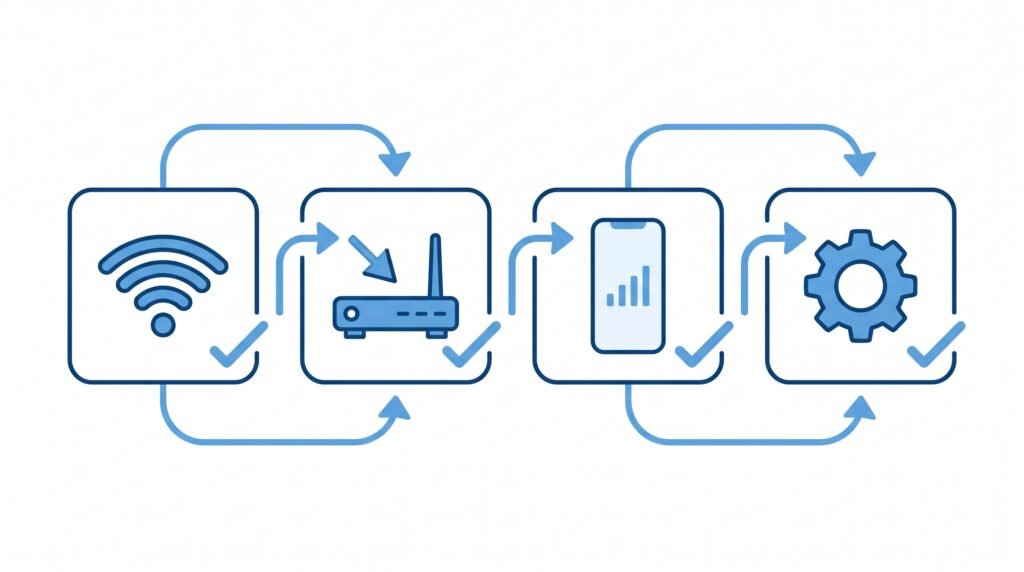
Fix 3 — Restart Your Device
A full device restart clears temporary network issues, memory problems, and background processes that can interfere with OmeTV’s connection.
Power off your phone or computer completely — not just sleep mode — and turn it back on. Then open OmeTV and test the connection again.
This is one of the most effective quick fixes and it takes less than two minutes.
Fix 4 — Switch Between WiFi and Mobile Data
If you’re on WiFi try switching to mobile data. If you’re on mobile data try switching to WiFi. Sometimes one connection type has issues that the other doesn’t.
This quick switch also tells you whether the problem is specific to one type of connection or something with OmeTV itself.
Fix 5 — Check If OmeTV Is Down
Sometimes the connection error has nothing to do with your device or internet. OmeTV’s servers might be having issues on their end.
Search online for “OmeTV down” or “OmeTV server status” to see if other users are reporting the same problem. If it’s a server issue all you can do is wait for OmeTV to fix it. These outages usually resolve within a few hours.
Check our OmeTV Not Working guide for more on identifying server side problems.
Fix 6 — Clear App Cache on Android
On Android a buildup of cached data can cause all kinds of app problems including connection errors.
Go to Settings, then Apps, find OmeTV in the list, tap Storage, and tap Clear Cache. Don’t tap Clear Data unless you want to reset the app completely — just Clear Cache is enough.
After clearing the cache reopen OmeTV and test the connection.
Fix 7 — Clear Browser Cache and Cookies
If you’re using OmeTV in a browser cached data can cause connection problems too.
On Chrome go to Settings, Privacy and Security, Clear Browsing Data, select Cached Images and Files and Cookies, then click Clear Data.
After clearing open a fresh tab, go to OmeTV, and try connecting again.
Fix 8 — Check Your VPN
If you’re using a VPN it could be causing your connection error. Some VPN servers are blocked by OmeTV or are too slow to maintain a stable video connection.
Try turning off your VPN and connecting to OmeTV without it. If that fixes the problem try switching to a different VPN server or a faster VPN provider.
For more on using OmeTV with or without a VPN check our OmeTV Without VPN guide.
Fix 9 — Check Your Firewall or Antivirus Settings
Some firewall and antivirus programs block certain types of internet connections including the kind OmeTV uses for video chat. This can cause connection errors that look like internet problems but are actually permission problems.
Check your antivirus or firewall settings and look for anything that might be blocking OmeTV. Add OmeTV to the allowed or trusted list and test again.
Fix 10 — Update the OmeTV App
An outdated version of the OmeTV app can have bugs that cause connection problems. App updates often include fixes for exactly these kinds of issues.
On Android go to Google Play Store, search OmeTV, and tap Update if available. On iPhone go to App Store, search OmeTV, and update if there’s a new version.
Always keep OmeTV updated to the latest version to avoid known bugs and connection issues.
Fix 11 — Reinstall the OmeTV App
If updating doesn’t help try uninstalling OmeTV completely and reinstalling it fresh from the App Store or Google Play Store.
This clears any corrupted app data that might be causing persistent connection errors. After reinstalling open the app fresh and test your connection.
Fix 12 — Try a Different Browser
If you’re using OmeTV in a browser and getting connection errors try switching to a different browser. Chrome is the most reliable browser for OmeTV. If you’re using Safari, Firefox, or another browser try Chrome instead.
Some browsers handle WebRTC connections — the technology OmeTV uses for video — better than others. Switching browsers fixes connection problems for a lot of people.
Fix 13 — Check Your Router Settings
If you’re having connection issues specifically on WiFi your router settings might be blocking certain types of traffic that OmeTV needs.
Some routers have built-in firewalls or content filters that can interfere with video chat apps. Try connecting to a different WiFi network — like a friend’s WiFi or a coffee shop — and see if OmeTV works there. If it does your home router settings might need adjusting.
Fix 14 — Free Up Device Memory
If your device is running low on memory it can cause apps like OmeTV to have connection problems because there isn’t enough memory to maintain the connection properly.
Close all other apps running in the background before opening OmeTV. On iPhone swipe up from the bottom and swipe away all open apps. On Android use the recent apps button and close everything.
Then open OmeTV with nothing else running and test the connection.
Connection Error on Specific Devices — Quick Guide
OmeTV Connection Error on iPhone
Check your WiFi or mobile data connection. Make sure OmeTV has permission to use your internet connection in Settings. Try closing all background apps and reopening OmeTV. If using Safari switch to Chrome. Check our How to Use OmeTV on iPhone guide for more iPhone specific help.
OmeTV Connection Error on Android
Clear the app cache in Settings, Apps, OmeTV, Storage, Clear Cache. Make sure OmeTV has network permission in your phone settings. Restart the app and test again. If still having issues try uninstalling and reinstalling.
OmeTV Connection Error on Laptop
Check your internet connection first. Clear browser cache. Try Chrome if you’re using another browser. Check firewall and antivirus settings. Restart your router if on WiFi.
OmeTV Connection Error on Chrome
Clear Chrome’s cache and cookies. Disable extensions one by one to find if one is blocking OmeTV. Make sure Chrome is updated to the latest version. Check our OmeTV Error Fix guide for more Chrome specific fixes.
When Nothing Works
If you’ve tried every fix above and still getting connection errors here are your final options.
Contact OmeTV support through their official website. Describe your problem in detail — what device you’re using, what browser or app version, what error message you see, and what fixes you’ve already tried. The more detail you give the faster they can help.
Also check our related guides for more specific help — OmeTV Keeps Disconnecting, OmeTV Internet Connection Error, and OmeTV Not Connecting to Anyone.
Quick Fix Checklist
Go through this in order and test OmeTV after each step:
- ✅ Check your internet connection is working
- ✅ Restart the OmeTV app or refresh the browser
- ✅ Restart your device completely
- ✅ Switch between WiFi and mobile data
- ✅ Check if OmeTV servers are down
- ✅ Clear app cache on Android
- ✅ Clear browser cache and cookies
- ✅ Turn off VPN or switch VPN server
- ✅ Check firewall and antivirus settings
- ✅ Update the OmeTV app
- ✅ Reinstall the OmeTV app
- ✅ Try a different browser
- ✅ Check router settings
- ✅ Close all background apps to free memory
Frequently Asked Questions
Why does OmeTV keep saying connection error?
The most common causes are a weak internet connection, a VPN blocking OmeTV, cached app data causing glitches, or OmeTV’s servers having temporary issues. Start by checking your internet and restarting the app — this fixes most connection errors quickly.
How do I fix OmeTV not connecting on Android?
Clear the OmeTV app cache in Settings, Apps, OmeTV, Storage, Clear Cache. Make sure your internet connection is stable. Restart the app completely. If still not working try uninstalling and reinstalling from the Google Play Store.
Why does OmeTV connect and then immediately disconnect?
This is usually caused by an unstable internet connection, a VPN with connection drops, or server side issues on OmeTV. Check your internet stability and try turning off any VPN you’re using.
Does a VPN cause OmeTV connection errors?
Yes a VPN can cause connection errors on OmeTV. Some VPN servers are blocked by OmeTV and others are simply too slow for stable video chat. Try turning off your VPN and connecting without it to see if that fixes the problem.
How do I know if OmeTV is down?
Search online for “OmeTV down” or check OmeTV’s social media for announcements. If multiple users are reporting the same problem at the same time it’s likely a server issue. All you can do in that case is wait for OmeTV to resolve it on their end.
Why does OmeTV work on mobile data but not WiFi?
This usually means your WiFi router is blocking certain types of traffic that OmeTV uses. Try restarting your router or connecting to a different WiFi network to test. Your router’s firewall settings might need adjusting.
How do I fix OmeTV connection error on iPhone?
Check your WiFi or data connection, close all background apps, make sure OmeTV has network permission in Settings, and try switching from Safari to Chrome. For more detailed iPhone help check our How to Use OmeTV on iPhone guide.