
Every so often on OmeTV you connect with someone whose video feels slightly off — too smooth, oddly lit, or just not quite natural. You start wondering whether you are actually looking at a real live camera feed or something altered. This is a fair question, and there are genuine signs that can help you tell the difference.
This guide covers what to actually look for.
Why This Happens on OmeTV
Some users on video chat platforms use virtual camera software, beauty filters, or in rare cases pre-recorded loops to alter or replace their live feed. Most of the time this is harmless — someone using a beauty filter to smooth their skin, for example — but it is still useful to know how to recognize when something is not a completely raw, untouched camera feed.
Sign 1 — Unnatural Smoothness in Skin or Lighting
Beauty filters are the most common form of alteration and they leave a fairly recognizable signature. Skin that looks unusually smooth, with no visible texture, pores, or natural shadow variation, is a strong sign of a filter being applied. Real skin under normal lighting always has at least some visible texture and natural variation.
Sign 2 — Lighting That Does Not Match the Background
If someone’s face is brightly and evenly lit but their background looks dim, shadowed, or inconsistent with that lighting, it can indicate that a virtual camera or overlay is adjusting their face separately from the actual environment behind them.
Sign 3 — Slight Lag Between Movement and Video
If you notice a small but consistent delay between when someone speaks or moves and when the video actually reflects that movement, this can be a sign of processing happening through virtual camera software, which sometimes introduces a small amount of lag compared to a raw camera feed.
Sign 4 — Edges Around the Face Look Slightly Off
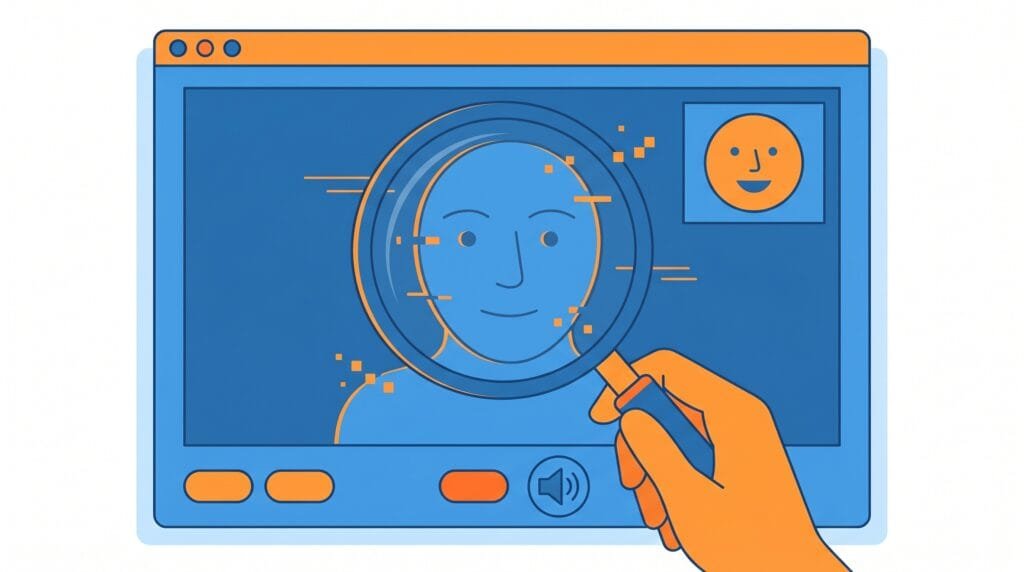
Certain types of face filters and virtual avatars can create a subtle visual edge or slight blur around the outline of someone’s face, especially when they move quickly or turn their head. A raw camera feed does not have this kind of edge artifact.
Sign 5 — The Person Avoids Quick Movements
Someone using a virtual camera with a filter or overlay applied often subconsciously avoids fast head movements or turning too far to the side, because these movements can reveal glitches or break the illusion of the filter. Naturally still or restricted movement throughout a chat can be a subtle clue.
Sign 6 — Background Never Changes Even Slightly
A completely static, unmoving background — even when the person shifts position or the lighting in the room would naturally flicker slightly — can indicate a virtual background or a looped video rather than a live feed.
Sign 7 — Audio and Video Do Not Quite Sync
If the audio feels slightly disconnected from lip movement, this can be another indicator of software processing happening between the camera and what you are seeing, rather than a fully raw direct feed.
What This Does NOT Necessarily Mean
It is worth being clear that using a filter or virtual camera does not automatically mean someone has bad intentions. Many people use simple beauty filters for the same reason people use them on any other platform — personal preference about how they look on camera. The signs above are about helping you understand what you are looking at, not necessarily a reason to assume the worst.
If you want more on using OmeTV with privacy tools yourself, check our How to Use OmeTV Without Showing Your Face guide.
When to Be More Cautious
While a simple beauty filter is generally harmless, you should be more cautious if you notice several of these signs together combined with other red flags — such as the person refusing to do simple requests like waving or turning their head, being unusually scripted in conversation, or pushing quickly toward sharing personal information or money.
These combined patterns are more associated with scam behavior than an innocent filter. Check our OmeTV Scams guide for more on recognizing manipulation patterns.
A Simple Test You Can Try
If you are unsure, a natural and non-confrontational way to check is simply asking the person to do something simple and unscripted — like waving with both hands, holding up a certain number of fingers, or turning their head quickly to the side. A real raw camera feed handles this instantly and naturally. A filtered or pre-recorded feed often struggles or lags noticeably with sudden unscripted movement.
Quick Signs Checklist
- ✅ Unusually smooth skin with no visible texture
- ✅ Face lighting that does not match the background
- ✅ Slight lag between movement and video
- ✅ Soft edges or blur around the face outline
- ✅ Avoidance of quick head movements
- ✅ A background that never shifts or flickers at all
- ✅ Audio that feels slightly out of sync with lip movement

Frequently Asked Questions
How can I tell if someone is using a filter on OmeTV?
Look for unusually smooth skin, lighting that does not match their background, slight lag between movement and video, or a static background that never changes. A combination of these signs is a stronger indicator than any single one alone.
Is it against the rules to use a filter on OmeTV?
Using a simple beauty filter is generally not against the rules and many users do this for personal preference. It becomes a concern mainly when combined with other deceptive or scam-like behavior.
How do I test if someone’s camera feed is real?
Ask them to do a simple unscripted movement, like waving both hands or turning their head quickly. A real raw camera feed handles this naturally, while filtered or fake feeds often lag or struggle with sudden movement.
Does a filter always mean someone is scamming me?
No. Many people use simple filters just to look better on camera, which is harmless. Be more cautious only when filter signs are combined with other red flags like refusing simple requests or rushing toward personal information.
What should I do if I suspect a fake camera feed on OmeTV?
If something feels off and the person also avoids simple requests or pushes for personal information quickly, skip the conversation and consider reporting if appropriate. Check our How to Report on OmeTV guide for next steps.