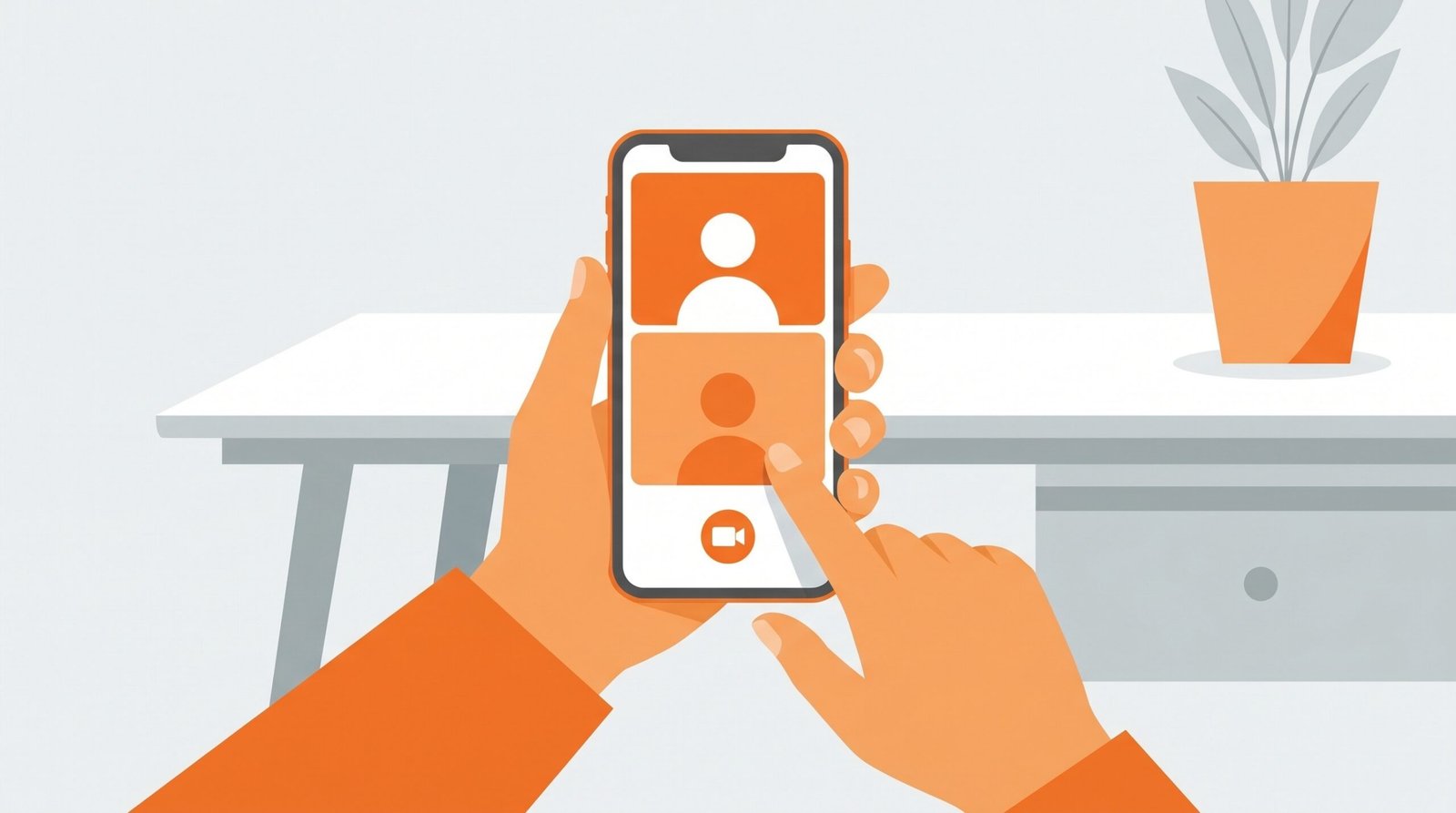
If you have been wondering whether OmeTV works on iPhone the answer is a clear and simple yes. OmeTV has a dedicated iOS app that works smoothly on all modern iPhones and gives you the full random video chat experience on the go. Whether you are at home, commuting, or travelling, OmeTV on iPhone lets you connect with people from around the world wherever you are.
In this complete guide we are going to walk through exactly how to download, set up, and use OmeTV on iPhone in 2026 — from the very first step all the way through to getting the best possible experience every session.
What You Need Before You Start
Making Sure Your iPhone is Ready for OmeTV
Before downloading OmeTV there are a few quick things worth checking to make sure everything works perfectly from the start.
iPhone Compatibility
OmeTV’s iOS app works on iPhone models running iOS 12 or later. This covers every iPhone from the iPhone 6s onwards which means the vast majority of iPhones currently in use are fully compatible. If your iPhone is running an older iOS version go to Settings then General then Software Update and update to the latest iOS before downloading OmeTV.
Internet Connection
OmeTV requires a stable internet connection for video chat. WiFi gives you the most stable and highest quality experience. Mobile data also works well but make sure you have a reasonable data plan if you plan to use OmeTV frequently as video chat does use a meaningful amount of data over time.
Camera and Microphone
Every iPhone has a built in front facing camera and microphone which is everything OmeTV needs. No additional hardware is required. We do recommend using earphones with a built in microphone for the best audio quality — this eliminates echo and makes your voice much clearer for the other person. For more on optimizing your audio setup our OmeTV best settings guide covers this in detail.
How to Download OmeTV on iPhone
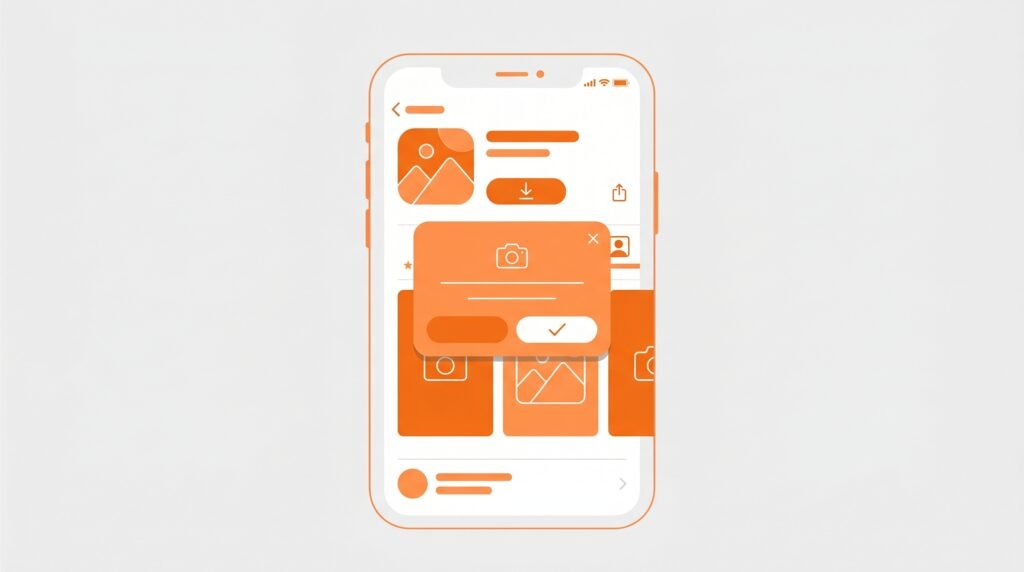
Getting the App on Your Device
Step 1 — Open the App Store
Tap the App Store icon on your iPhone home screen. This is the blue icon with a white letter A made of drawing tools.
Step 2 — Search for OmeTV
Tap the Search tab at the bottom of the App Store. In the search bar at the top type OmeTV and tap Search. The OmeTV Video Chat app will appear in the results. Make sure you are downloading the official OmeTV app — it is developed by Camfrog and has the distinctive OmeTV orange logo.
Step 3 — Download the App
Tap the Get button next to the OmeTV app. If prompted authenticate with Face ID, Touch ID, or your Apple ID password to confirm the download. The app is completely free so you will not be charged anything. Wait for the download to complete — it typically takes less than a minute on a good connection.
Step 4 — Open OmeTV
Once downloaded tap Open or find the OmeTV icon on your home screen and tap it. The app will open and you will see the main OmeTV interface.
How to Set Up OmeTV on iPhone for the First Time
The First Launch Process
Allow Camera and Microphone Permissions
The very first time you open OmeTV on iPhone it will ask for permission to access your camera and microphone. This is a standard iOS privacy prompt and you need to tap Allow for both to use OmeTV properly.
If you accidentally tap Don’t Allow do not worry. Go to your iPhone Settings, scroll down to find OmeTV in the app list, tap on it, and toggle Camera and Microphone both to the on position. Then go back to OmeTV and it will work correctly.
If you are having trouble with camera or microphone permissions on iPhone our OmeTV black screen fix guide and OmeTV microphone not working guide cover every possible fix including iPhone specific solutions.
Set Your Language and Country Filter
Before pressing Start for the first time take a moment to set your filters. Tap the settings icon on the main OmeTV screen. Set your language filter to your preferred language. Set your country filter if you want to connect with users from a specific region.
Setting these filters before your first session makes an immediate and noticeable difference to the quality of your conversations. Our how to change country on OmeTV guide explains the country filter in detail if you want to understand all the ways you can use it.
How to Use OmeTV on iPhone — The Full Experience
Everything You Need to Know About Chatting
Starting a Chat
Tap the Start button on the main OmeTV screen. The app will access your camera and microphone and connect you with a random stranger within seconds. Your video feed appears on one side of the screen and the person you have been matched with appears on the other.
Skipping to the Next Person
If you are not interested in a conversation with the current person simply swipe on the screen or tap the Next button. You will be immediately connected with someone new. Do not feel bad about skipping — it is a completely normal and expected part of the OmeTV experience and everyone does it.
Using Text Chat
If you prefer to type rather than speak OmeTV has a text chat option built in. Tap the text chat icon during a conversation to open the keyboard and type your messages. Text chat works alongside video chat so you can do both at the same time.
Reporting Inappropriate Users
If someone behaves inappropriately tap the Report button during the chat. Select the appropriate report category and confirm. Then tap Next to move on. For a detailed guide on when and how to report our how to report on OmeTV guide covers everything you need to know.
Ending Your Session
When you are done chatting tap the Stop button to end your session. The app will return to the main screen. Your camera and microphone will stop being used as soon as you tap Stop.
Tips for the Best OmeTV iPhone Experience
Small Changes That Make a Big Difference
Use the Front Camera Correctly
OmeTV uses your iPhone’s front facing camera by default which is perfect for video chat. Make sure you are holding your iPhone at eye level rather than tilting it up from below or down from above. Eye level angles look the most natural and flattering on camera.
Get Your Lighting Right
Good lighting is just as important on iPhone as it is on desktop. Sit facing a window during the day or near a lamp at night. Never have a bright light source behind you. Good lighting is the single biggest factor that determines whether people choose to keep talking to you or skip immediately. Our OmeTV tips for beginners guide covers this and many other setup tips in detail.
Use Earphones
Plug in your Apple earphones or any other earphones before starting OmeTV. This eliminates echo completely and makes your voice significantly clearer for the other person. It also means you can hear the other person more clearly which makes conversations more enjoyable.
Keep Other Apps Closed
Close other apps running in the background before using OmeTV on iPhone. Too many background apps reduce the amount of RAM available to OmeTV which can cause lag, freezing, or crashes. Swipe up from the bottom of your screen and swipe away all other apps before starting OmeTV.
If you experience crashes our OmeTV app crashing guide covers every iPhone specific fix.
Keep OmeTV Updated
Always keep your OmeTV app updated to the latest version. Updates fix bugs, improve performance, and add new features. Go to the App Store, tap your profile picture in the top right, and scroll down to see if an OmeTV update is available. Tap Update if one is showing.
Common OmeTV iPhone Problems and Quick Fixes
| Problem | Quick Fix |
|---|---|
| Black screen on OmeTV | Allow camera in iPhone Settings then OmeTV |
| Microphone not working | Allow mic in iPhone Settings then OmeTV |
| App keeps crashing | Update app and close background apps |
| OmeTV not connecting | Check WiFi or switch to mobile data |
| Poor video quality | Switch from mobile data to WiFi |
| App not downloading | Check available storage on iPhone |
OmeTV iPhone vs OmeTV PC — Which is Better?
An Honest Take on Both Experiences
Both the iPhone app and the PC browser version of OmeTV work well but they each suit different situations. The iPhone app is better for chatting on the go, casual sessions when you are relaxing on the couch, and situations where you want the convenience of a touchscreen interface with swipe to skip.
The PC version is better for longer sessions where you want a bigger screen, when you want the most stable possible connection through wired ethernet, and when you want easier access to settings and browser based features.
For a complete look at the PC experience our how to use OmeTV on PC guide covers everything about the desktop version. And for a full review of both mobile app versions our OmeTV app review goes into detail on everything the app offers.
Staying Safe on OmeTV iPhone
The Same Rules Apply on Mobile
Whether you are using OmeTV on iPhone or any other device the same safety practices apply. Never share personal information with strangers. Do not click on links sent in the text chat. Be aware of what is visible in your background. And use the report button whenever you encounter inappropriate behavior.
For a complete safety guide our OmeTV safety tips guide covers every important practice. And if you want to know what scams to watch out for our OmeTV scams guide has everything you need to stay protected.
Frequently Asked Questions
Is OmeTV free on iPhone?
Yes. The OmeTV app is completely free to download and use on iPhone. Some premium features are available through in app purchases but the full basic chat experience costs nothing.
Does OmeTV work on older iPhones?
OmeTV works on iPhones running iOS 12 or later which covers iPhone 6s and newer. If your iPhone is older than this it may not be compatible with the current version of the OmeTV app.
Why is OmeTV not working on my iPhone?
The most common reasons are camera or microphone permissions not being allowed, an outdated app version, or low iPhone storage. Go to iPhone Settings, find OmeTV, and make sure Camera and Microphone are both enabled. Then check for app updates in the App Store.
Can I use OmeTV on iPhone without WiFi?
Yes. OmeTV works on mobile data as well as WiFi. However WiFi gives you better video quality and uses less of your data plan. If you use OmeTV frequently on mobile data make sure you have a sufficient data allowance.
How do I update OmeTV on iPhone?
Open the App Store and tap your profile picture in the top right corner. Scroll down to see available updates. If OmeTV has an update available tap Update next to it.
Conclusion
Using OmeTV on iPhone is simple, free, and works brilliantly right out of the box. Download the app from the App Store, allow camera and microphone permissions, set your language and country filters, and tap Start. Within seconds you are connected with someone from anywhere in the world.
Take a minute to set up good lighting, plug in your earphones, and close background apps before your first session. These small steps make a genuinely noticeable difference to your experience and the impression you make on the people you chat with.
Ready to get the most out of OmeTV on iPhone? Check out our OmeTV conversation ideas guide for 50 proven topics that make every chat more interesting, our how to make friends on OmeTV guide for turning random connections into real friendships, and our OmeTV best settings guide for the optimal configuration on every device.