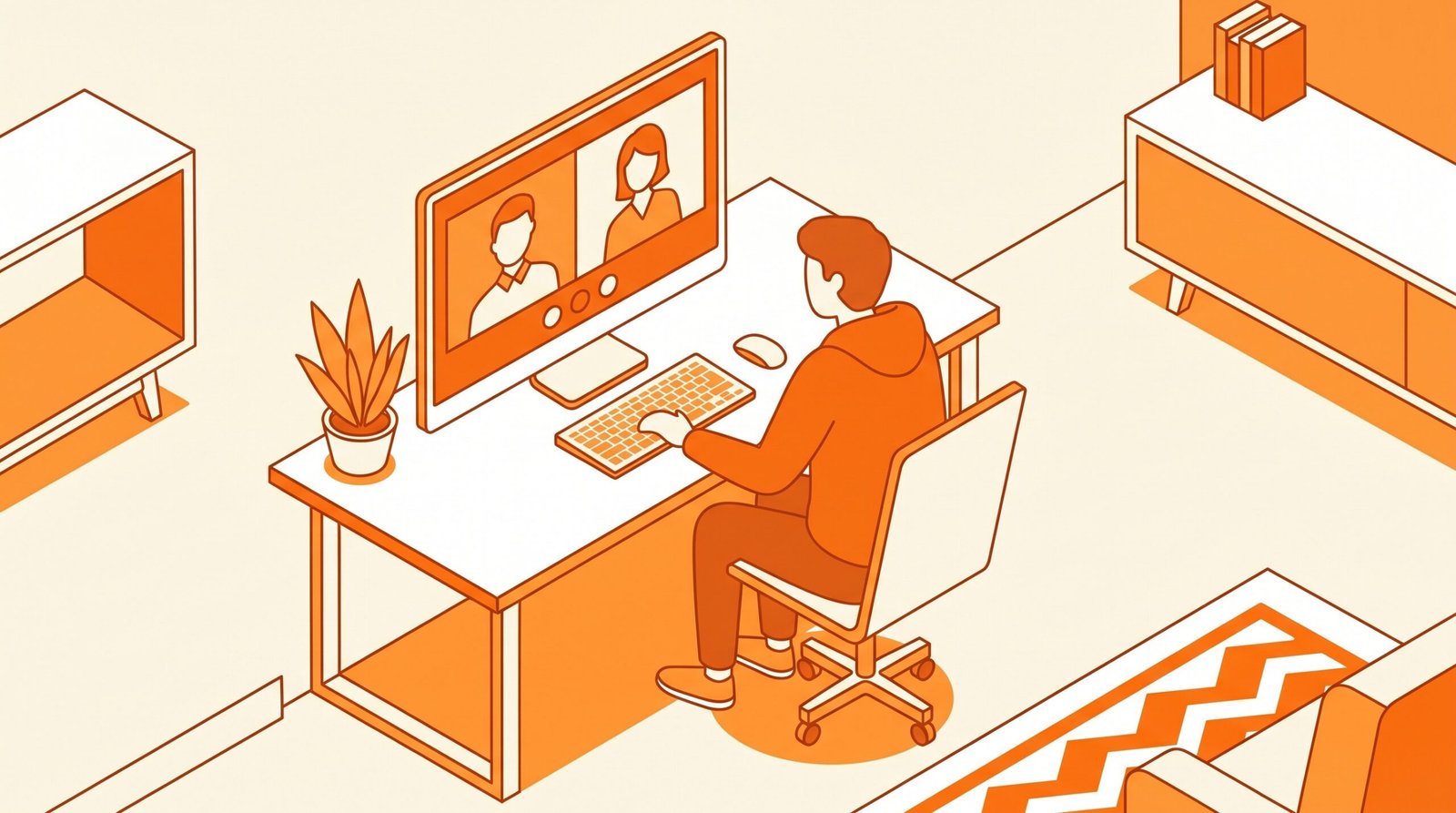
A lot of people discover OmeTV on their phone first and then wonder whether it works just as well on a PC or laptop. The short answer is yes — OmeTV works beautifully on PC and in many ways the desktop experience is actually better than mobile. Bigger screen, better camera quality, more stable connection, and no battery drain.
In this complete guide we are going to walk you through exactly how to use OmeTV on PC from the very first step all the way through to getting the best possible experience every single session.
Do You Need to Download Anything to Use OmeTV on PC?
The Answer Will Surprise Most People
This is the first question most people ask and the answer is no — you do not need to download or install anything to use OmeTV on PC. OmeTV works completely through your web browser. No software installation, no plugins, no extra steps.
Just open Chrome or Firefox, go to the OmeTV website, and you are ready to start chatting. It is genuinely that simple. If you have been putting off trying OmeTV on PC because you thought it required a download, that concern is completely unfounded.
The only things you need are a working webcam, a microphone, a stable internet connection, and an updated web browser. Most modern PCs and laptops already have all of these built in.
What You Need Before You Start
Setting Up for the Best PC Experience
Before you dive into your first OmeTV session on PC there are a few quick things worth checking to make sure everything works perfectly from the start.
Check Your Webcam
If you are on a laptop you almost certainly have a built in webcam already. If you are on a desktop PC you may need an external USB webcam. Any basic USB webcam works perfectly fine with OmeTV — you do not need anything expensive or high end.
To check if your webcam is working on Windows open the Camera app from the Start menu. If you can see yourself on screen your webcam is working perfectly. On Mac open Photo Booth to do the same check.
Check Your Microphone
Most laptops have a built in microphone. Desktop PC users may need a headset or external microphone. We strongly recommend using headphones with a built in microphone rather than your PC speakers and built in mic. This eliminates echo completely and makes your audio significantly clearer for the other person.
To test your microphone on Windows right click the speaker icon in the taskbar and click Open Sound Settings. Under Input speak into your microphone and check that the blue bar moves when you talk. On Mac go to System Preferences then Sound then Input and do the same test.
Use Chrome or Firefox
OmeTV works on all major browsers but it works best on Chrome and Firefox. Both browsers handle webcam and microphone access smoothly and consistently. If you have an older version of your browser update it before using OmeTV for the most reliable experience.
How to Use OmeTV on PC — Step by Step
The Complete Process From Opening to Chatting
Step 1 — Open Your Browser and Go to OmeTV
Open Chrome or Firefox on your PC. Type ometv.media into the address bar and press Enter. The OmeTV website will load within a few seconds. You will see the main OmeTV interface with a large Start button in the center of the screen.
Step 2 — Allow Camera and Microphone Access
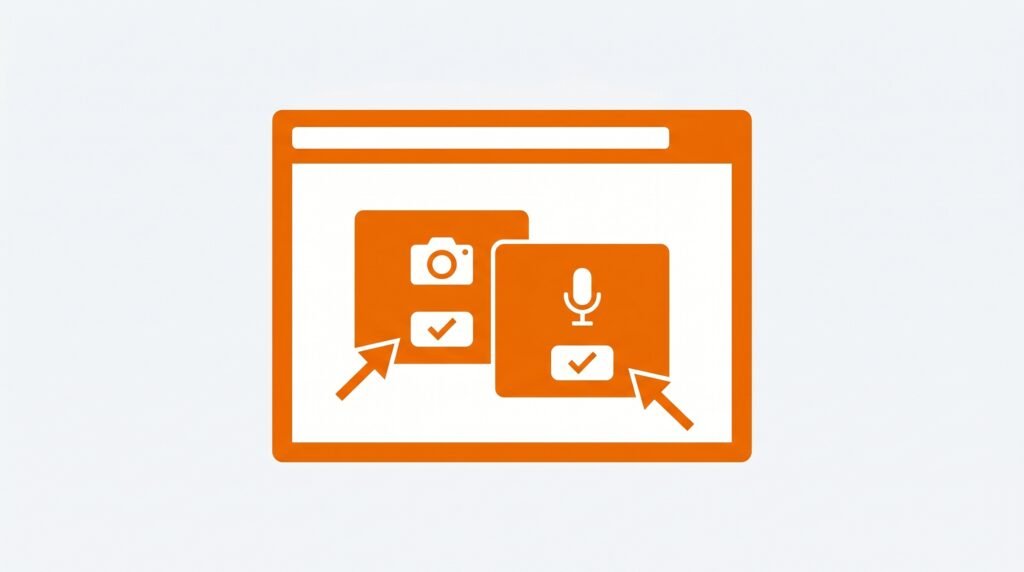
The moment you click Start for the first time your browser will show a permission popup asking whether you want to allow OmeTV to access your camera and microphone. This is a standard browser security feature and you need to click Allow for OmeTV to work.
If you accidentally click Block do not worry. Look for a small camera icon on the right side of your browser address bar. Click it and change the permission to Allow. Then refresh the page and try again.
If you are having trouble with camera or microphone permissions our OmeTV black screen fix guide and OmeTV microphone not working guide cover every possible fix in detail.
Step 3 — Set Your Language and Country Filter
Before you press Start for the first time take 30 seconds to set your filters. Click the settings icon on the OmeTV interface. Set your language filter to your preferred language. Set your country filter if you want to connect with users from a specific region.
These two settings make an enormous difference to the quality of your conversations. Our OmeTV best settings guide explains the optimal filter configuration for different types of users including language learners and people looking to make friends.
Step 4 — Press Start and Connect
Click the Start button. OmeTV will use your camera and microphone to connect you with a random stranger within seconds. Your video feed appears on one side of the screen and the other person appears on the other side.
Step 5 — Chat, Skip, or Report
Once connected you have three options. You can chat with the person you have been matched with. You can press Next to skip to the next person if you are not interested. Or you can press the Report button if someone is behaving inappropriately.
That is the entire OmeTV PC experience. Simple, fast, and completely free.
Getting the Best OmeTV PC Experience
Tips That Make a Real Difference
Position Your Camera at Eye Level
The single most important setup tip for OmeTV on PC is to make sure your camera is at eye level. Looking up at a camera from below or down at a camera from above creates an unflattering angle that makes people less likely to want to continue a conversation.
If your laptop screen is too low place it on a stand or a stack of books to raise it to eye level. If you are using an external webcam on a desktop mount it at the top of your monitor at eye level.
Get Your Lighting Right
Good lighting is the second most important factor for a great OmeTV experience on PC. Sit facing a window during the day to use natural light. At night use a lamp positioned in front of your face. Never sit with a bright window or light source behind you — this creates a dark silhouette effect that makes your face impossible to see.
Our OmeTV tips for beginners guide covers lighting and setup in much more detail if you want to go deeper on this.
Use Headphones
Always use headphones when using OmeTV on PC. Without headphones the sound from your speakers gets picked up by your microphone and sent back to the other person as an echo. This is incredibly distracting and a very common reason people get skipped quickly. Any basic earphones or headset eliminates this problem completely.
Keep Other Browser Tabs Closed
OmeTV video chat uses a meaningful amount of your PC’s processing power and internet bandwidth. Having many other browser tabs open — especially tabs with video or audio — can cause OmeTV to lag, freeze, or drop connection. Close unnecessary tabs before starting an OmeTV session for the smoothest experience.
If you experience lag or freezing our OmeTV lag fix guide covers every fix that works.
Use a Wired Internet Connection if Possible
WiFi works fine for most OmeTV sessions but a wired ethernet connection is significantly more stable. If your PC is near your router try plugging in an ethernet cable directly for the most reliable possible connection. This eliminates WiFi signal drops that can cause OmeTV to disconnect mid conversation.
If OmeTV keeps disconnecting on your PC our OmeTV keeps disconnecting guide has specific fixes for this problem.
Common OmeTV PC Problems and Quick Fixes
| Problem | Quick Fix |
|---|---|
| Black screen on OmeTV | Allow camera permission in browser settings |
| Microphone not working | Allow mic permission and check system settings |
| OmeTV lagging on PC | Close other tabs and check internet speed |
| OmeTV keeps disconnecting | Use wired connection or restart router |
| Cannot find anyone to chat | Remove country filter temporarily |
| OmeTV not loading | Clear browser cache and update browser |
OmeTV PC vs OmeTV Mobile — Which is Better?
An Honest Comparison
Both the PC and mobile versions of OmeTV work well but they each have their own advantages.
The PC version gives you a bigger screen which makes video chat more immersive and enjoyable. It also typically gives you a more stable internet connection through WiFi or ethernet. And it is easier to manage settings, filters, and browser permissions on a larger screen.
The mobile app gives you the convenience of chatting anywhere. The swipe to skip gesture on mobile feels more natural than clicking Next on PC. And mobile data connections mean you can use OmeTV even without a WiFi connection.
For a complete look at the mobile experience check out our OmeTV app review which covers everything about the Android and iOS versions in detail.
Staying Safe on OmeTV PC
The Same Rules Apply Regardless of Device
Whether you are using OmeTV on PC or mobile the same safety rules apply. Never share personal information like your home address or phone number with strangers. Make sure nothing identifying is visible in your background. Do not click on any links sent in the text chat. And use the report button immediately if anyone behaves inappropriately.
For a complete guide to staying safe on OmeTV our OmeTV safety tips guide covers every important safety practice. And if you want to know what scams to watch out for our OmeTV scams guide has everything you need.
Frequently Asked Questions
Does OmeTV work on PC without downloading anything?
Yes. OmeTV works completely through your web browser on PC. No download or installation is required. Just open Chrome or Firefox and go to ometv.media.
Which browser is best for OmeTV on PC?
Chrome and Firefox both work excellently with OmeTV on PC. Both handle camera and microphone access smoothly. Keep whichever browser you choose updated to the latest version for the best experience.
Why is OmeTV not working on my PC?
The most common reasons are camera permission being blocked in your browser, an outdated browser, or too many other tabs using your bandwidth. Check camera permissions first, update your browser, and close unnecessary tabs.
Can I use OmeTV on PC without a webcam?
OmeTV requires a webcam for video chat. If your desktop PC does not have a built in webcam you need an external USB webcam. Text chat is available without a webcam but the video chat experience requires one.
Is OmeTV better on PC or mobile?
Both are great in different ways. PC gives you a bigger screen and more stable connection. Mobile gives you convenience and a more intuitive swipe to skip experience. Try both and see which you prefer.
Conclusion
Using OmeTV on PC is easy, free, and requires no downloads whatsoever. Open Chrome or Firefox, go to ometv.media, allow camera and microphone access, set your filters, and press Start. Within seconds you are connected with someone from anywhere in the world.
Take five minutes to set up your lighting and camera angle properly, use headphones, and keep your browser updated. These simple steps make the difference between an average OmeTV PC experience and a genuinely great one.
Ready to explore more? Check out our OmeTV conversation ideas guide for 50 proven topics that make every chat more interesting, and our how to make friends on OmeTV guide for turning random connections into real friendships.
1 thought on “How to Use OmeTV on PC — Complete Step by Step Guide 2026”