Nothing is more frustrating than opening OmeTV and seeing nothing but a black screen instead of a live video feed. The OmeTV black screen problem is one of the most commonly reported issues on the platform and the good news is that it is almost always fixable in just a few minutes. In this complete guide we cover the 5 most effective OmeTV black screen fixes that work on any browser or device in 2026.
Why is OmeTV Showing a Black Screen?
Before jumping into the fixes it helps to understand what causes the OmeTV black screen problem in the first place. The black screen on OmeTV is almost always caused by one of these reasons:
- Camera permission is blocked in your browser or phone settings
- Another app is using your camera at the same time
- Your browser or OmeTV app is outdated
- Browser cache and cookies are causing a conflict
- Your camera drivers need to be updated
- Hardware acceleration in your browser is causing issues
The good news is that all of these causes have simple and effective solutions. Work through the fixes below in order and your OmeTV black screen problem will be solved quickly.
Fix 1 — Allow Camera Permission in Your Browser
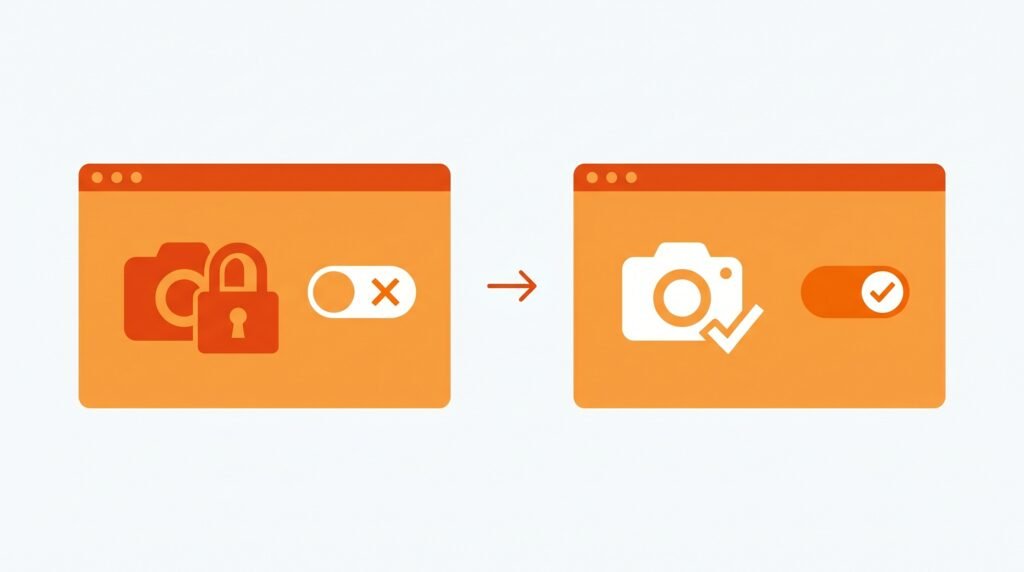
The most common cause of the OmeTV black screen is camera permission being blocked in your browser. When your browser blocks camera access OmeTV has nothing to display and shows a black screen instead.
To fix this on Chrome look for a small camera icon on the right side of your address bar. If you see a red cross or blocked symbol on it click it and select Always allow camera access. Click Done and refresh the page.
If you do not see the camera icon in the address bar open Chrome settings by clicking the three dots in the top right corner. Go to Privacy and Security then Site Settings then Camera. Find OmeTV in the blocked sites list and change the permission to Allow. Refresh the page and check if the black screen is gone.
On Firefox click the lock icon on the left side of the address bar. Find Camera in the permissions list and change it from Blocked to Allow. Refresh the page after making the change.
On Microsoft Edge click the lock icon in the address bar, find Camera permissions, and set it to Allow. Refresh and test OmeTV again.
Fix 2 — Close All Other Apps Using Your Camera
The OmeTV black screen is very commonly caused by another app or browser tab using your camera at the same time. Your camera can only be accessed by one application at a time. If Zoom, Skype, Teams, Google Meet, or any other video app is open and using your camera, OmeTV cannot access it and displays a black screen instead.
Close every app that might be using your camera before opening OmeTV. On Windows press Ctrl Alt Delete and open Task Manager. Look through the list of running processes for any video conferencing or camera related apps and close them completely. On Mac press Command Space, open Activity Monitor, and do the same.
Also check if any other browser tabs have camera access. If you have a video call open in another tab, close it before using OmeTV. After closing all other camera apps refresh OmeTV and the black screen should be gone.
Fix 3 — Clear Your Browser Cache and Cookies
Old and corrupted browser cache data is a surprisingly common cause of the OmeTV black screen. Your browser stores temporary data from websites and over time this data can become corrupted or outdated causing display issues including the black screen on OmeTV.
Clearing your browser cache is quick and easy and often solves the OmeTV black screen problem immediately.
On Chrome press Ctrl Shift Delete at the same time. Set the time range to All Time. Make sure Cookies and other site data and Cached images and files are both checked. Click Clear Data. Restart Chrome completely and open OmeTV again.
On Firefox press Ctrl Shift Delete. Set the time range to Everything. Check both Cookies and Cache. Click Clear Now. Restart Firefox and test OmeTV.
On mobile go to your phone settings, find your browser app, tap Storage, and tap Clear Cache. Restart the browser and try OmeTV again.
Fix 4 — Update Your Browser or OmeTV App
An outdated browser is one of the most overlooked causes of the OmeTV black screen. Browser updates frequently include important fixes for camera and media handling that older versions lack. If your browser has not been updated recently it may struggle to properly access and display your camera feed on OmeTV.
To update Chrome click the three dots in the top right corner, go to Help, and click About Google Chrome. Chrome will automatically check for and install any available updates. Restart Chrome after the update completes and try OmeTV again.
To update Firefox click the three lines in the top right corner, go to Help, and click About Firefox. Firefox will check for updates and install them automatically. Restart and test.
For the OmeTV mobile app open Google Play Store on Android or the App Store on iPhone, search for OmeTV, and tap Update if one is available. App updates often include specific fixes for camera display issues.
Fix 5 — Disable Hardware Acceleration in Your Browser
Hardware acceleration is a browser feature that uses your graphics card to improve performance. However it can sometimes cause display issues including the OmeTV black screen, especially on older computers or those with outdated graphics drivers.
Disabling hardware acceleration is a simple fix that solves display related issues on OmeTV for many users.
To disable hardware acceleration on Chrome click the three dots in the top right corner and go to Settings. Scroll down and click Advanced. Under the System section find Use hardware acceleration when available and toggle it off. Click Relaunch to restart Chrome and test OmeTV.
To disable hardware acceleration on Firefox click the three lines in the top right corner and go to Settings. Click General and scroll down to Performance. Uncheck Use recommended performance settings and then uncheck Use hardware acceleration when available. Restart Firefox and try OmeTV again.
OmeTV Black Screen Fix — Quick Summary
| Cause | Fix |
|---|---|
| Camera permission blocked | Allow camera in browser settings |
| Another app using camera | Close all other camera apps |
| Corrupted browser cache | Clear cache and cookies |
| Outdated browser or app | Update to latest version |
| Hardware acceleration conflict | Disable hardware acceleration |
OmeTV Black Screen on Mobile — Specific Fixes
If you are experiencing the OmeTV black screen on your mobile phone specifically, here are some additional fixes to try.
Go to your phone settings and find the OmeTV app. Tap Permissions and make sure Camera is set to Allow. If it is already allowed try toggling it off and back on again. Then force close the OmeTV app completely by swiping it away from your recent apps list. Reopen the app and check if the black screen is fixed.
If the black screen persists on mobile try uninstalling the OmeTV app completely and reinstalling it fresh from Google Play Store or the App Store. A fresh installation eliminates any corrupted app data that may be causing the black screen.
Frequently Asked Questions
Why is my OmeTV camera showing a black screen?
The most common reason is that camera permission is blocked in your browser or phone settings. Go to your browser or phone settings, find camera permissions for OmeTV, and set it to Allow.
Why does OmeTV show a black screen only sometimes?
An intermittent OmeTV black screen is usually caused by another app occasionally taking control of your camera. Make sure no other apps with camera access are running in the background when you use OmeTV.
How do I fix OmeTV black screen on Chrome specifically?
Click the camera icon in the Chrome address bar, set OmeTV camera permission to Allow, clear your Chrome cache, disable hardware acceleration in Chrome settings, and restart Chrome. These four steps fix the black screen on Chrome in most cases.
Does clearing cache fix the OmeTV black screen?
Yes in many cases. Old corrupted cache data can prevent OmeTV from properly accessing and displaying your camera feed. Clearing the cache forces your browser to load OmeTV fresh and often resolves the black screen issue immediately.
Why is my OmeTV black screen only on one side?
If your screen is black but you can see the other person it means your camera is not working properly. If the other person’s screen is black but yours is fine it means their camera has an issue. Focus the fixes above on your own camera setup.
Conclusion
The OmeTV black screen problem is almost always fixable with one of the five solutions in this guide. Start by checking your camera permissions in your browser settings and closing any other apps that might be using your camera. If that does not work clear your browser cache, update your browser or app, and try disabling hardware acceleration. In the vast majority of cases your OmeTV black screen will be fixed within minutes. If the problem persists after trying all five fixes, try using a completely different browser or contact OmeTV support directly.